On this page
- Why do remote podcast recordings sound bad?
- What is the difference between local recording and call recording?
- What do separate tracks mean for editing?
- How do you set up local recording for a remote interview?
- How does ICONS Live record remote guests?
- Do you need to tell guests they are being recorded?
- Next step
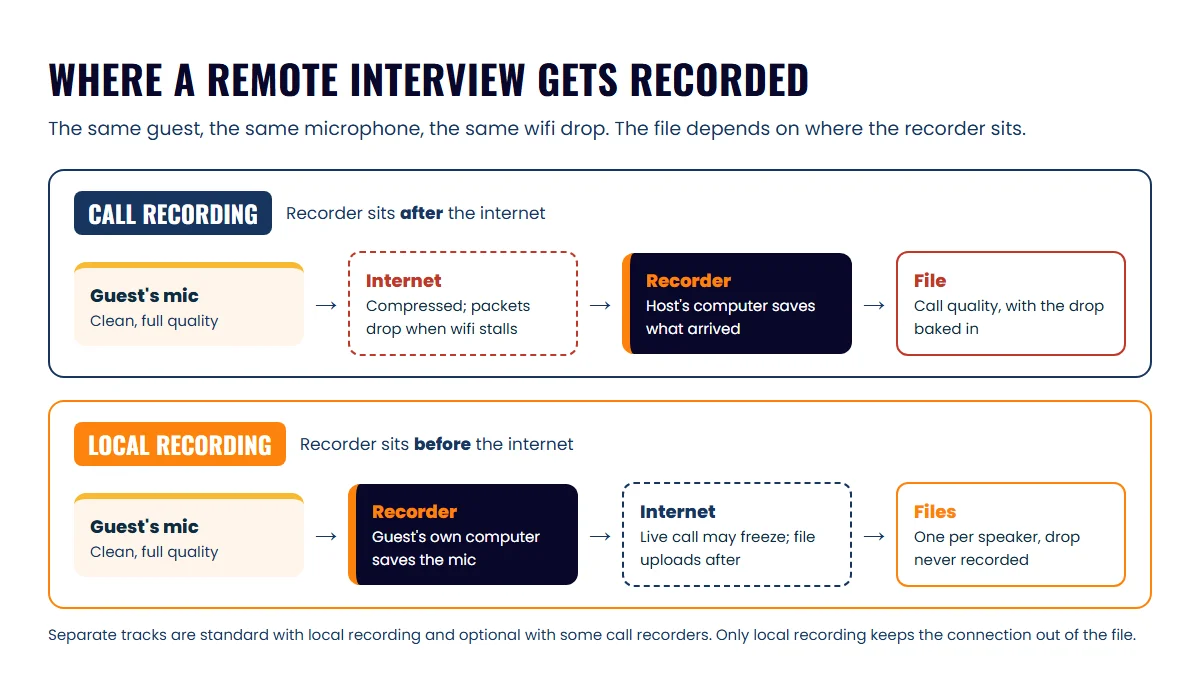
Remote podcast recordings sound bad because the recording is made from the call. A call recording can only contain the compressed audio that survived the trip over the internet, so every wifi hiccup and dropped packet is baked into the file. Local recording captures each person on their own computer instead, so the saved audio never crosses the connection.
That one change, recording locally and in separate tracks, fixes more remote interviews than any microphone purchase. The sections below cover what goes wrong on a call recording, what separate tracks let an editor do, how to set it up with the tools agents already use, and the consent step you owe your guests. The rest of the episode workflow, from booking to publishing, is in the real estate podcast production pillar.
Why do remote podcast recordings sound bad?
Remote recordings sound bad when the file is captured at the host’s end of the call rather than at each speaker’s microphone. Your guest’s voice leaves their computer in good shape. Then the video-call software squeezes it down so it can cross the internet in real time, and your software records whatever arrives.
Three things happen on that trip, and none of them can be undone later:
- Compression. Call software reduces audio quality on purpose so the conversation stays live. The recording inherits that reduced quality.
- Dropped packets. When the guest’s wifi stumbles, pieces of audio never arrive. The software papers over the gaps, which is the robotic, underwater sound you’ve heard on bad episodes.
- Noise and echo processing. Call tools suppress background noise and echo so people can hear each other. Helpful live, but it can also chew up the edges of words and make a voice sound thin.
A good microphone doesn’t help with any of this. The mic improves what enters the guest’s computer. The connection decides what reaches yours. If you want the quality the mic actually captured, you have to record on the guest’s side.
What is the difference between local recording and call recording?
Local recording saves each person’s audio and video on their own computer and uploads the files afterwards; call recording saves what one computer received during the call. Both can give you separate files per person. Only one keeps the connection out of the recording.
The comparison below shows how the two approaches differ on the things that matter for an interview show.
| Call recording | Local recording | |
|---|---|---|
| Where the audio is captured | On the host’s computer, or the tool’s server, after the call stream | On each speaker’s computer, straight from their mic |
| Effect of a wifi drop | Garbled or missing audio in the file | The live call freezes; the saved file is untouched |
| Audio quality in the file | Call quality (compressed) | Whatever the mic and settings captured |
| Separate files per speaker | Sometimes, if you turn it on | Standard |
| Video per speaker | Usually one combined recording | One file per camera, plus a combined version in most tools |
| What the guest does | Joins the call | Joins from a link in the browser, then waits for the upload to finish |
| Typical cost | Included in the meeting tool | Free tiers exist; paid plans unlock higher quality and more track downloads |
Zoom is the call-recording tool most of your guests already know, and its computer recording has a setting called “Record a separate audio file for each participant.” Zoom’s help page on computer recording says that with the setting on, the host gets one audio file per participant in an “Audio Record” folder, each named after the participant, alongside a single MP4 video file. That’s useful for editing. It is still a call recording, because the host’s computer can only save the audio it received.
Local-recording tools are built around the other path. As one example, Riverside’s pricing page lists separate audio and video tracks for each participant, 44.1 kHz audio and up to 720p video on its free plan, and 48 kHz audio with up to 4K video on its Pro plan at $24 a month billed annually. Other tools in the category work the same way; what you’re paying for is the capture on the guest’s machine, not a nicer interface.
What do separate tracks mean for editing?
Separate tracks mean an editor gets one file per voice and can treat each voice differently without touching the others. On a single mixed file, every fix hits everyone.
Here’s what that unlocks on a typical agent interview:
- Crosstalk. You start a question while the lender is still finishing a thought. On separate tracks, the editor trims your early start and the lender’s sentence stays whole.
- Noise in one room. The guest’s office HVAC hums; yours doesn’t. Noise reduction runs on their track only, so your voice isn’t softened for no reason.
- Uneven levels. A quiet guest and a loud host can each be brought to the same loudness. Apple Podcasts asks that episode loudness sit around -16 LKFS, plus or minus 1 dB, with true peak no higher than -1 dB FS, and that’s far easier to hit when each voice is balanced first.
- Coughs, dogs and doorbells. A cough while the other person is talking gets cut from one track, and the sentence underneath it survives.
- Clips. Cutting between two camera files for a vertical clip needs each person’s video on its own. A combined grid recording gives the editor one wide frame to crop.
Editors price this. Remote guests with uneven audio are one of the things that push an editing quote up, as the guide to podcast editing costs shows. Cleaner source files mean fewer billed hours.
How do you set up local recording for a remote interview?
Set up local recording by picking a tool that captures on each person’s computer, turning on separate tracks, and building the upload wait into the calendar invite. The steps are the same whichever tool you choose.
- Pick the capture path. If your guests will only use Zoom, use its computer recording with “Record a separate audio file for each participant” switched on before the call starts, and accept that the quality is call quality. If you publish video or your guests are often on home wifi, use a browser-based local-recording tool. Icons’ own studio, ICONS Live, is described in the next section; the point is the capture path, not the brand.
- Turn on separate tracks for audio and video. Most local tools do this by default. Check that your plan lets you download the individual files as well as the combined one.
- Set the audio to 48 kHz if the tool offers it, and match video settings between host and guest. The remote video settings checklist covers resolution, frame rate and the effects to switch off.
- Send the guest a one-line explanation. “Our recording tool saves your audio on your computer and uploads it when we finish, so please stay in the tab until the progress bar completes.” Guests who know why they’re waiting actually wait.
- Put the guest on wired earbuds or headphones. Local recording removes the connection from the file, but it can’t remove the echo of your voice coming out of their laptop speakers. The guest prep note in the equipment guide for agents covers this and the laptop-mic problem.
- Do a two-minute test before every new guest’s session. Record, stop, and check that two separate files appear. Finding out there’s only one file after a 45-minute interview is the expensive version of this lesson.
- Download and back up the raw files the same day, named by episode, so the editor and you are working from the same set. The file-naming scheme in the podcast production workflow keeps this tidy across a season.
How does ICONS Live record remote guests?
ICONS Live is the browser-based recording studio Icons of Real Estate uses to record network shows and production clients’ episodes, and each person on the call is recorded separately on their own device. Guests join from an invite link in their browser with nothing to download, check their camera and microphone in a green room, and wait for the host to let them in.
What the studio captures and produces, as it works today:
| Stage | What ICONS Live does |
|---|---|
| Joining | Invite links by role (host, guest, producer, audience); up to 6 people on camera at once |
| Recording | Each person’s audio is recorded uncompressed at 48 kHz and their video at a target of 8 Mbps (about 1080p), depending on their camera and computer |
| During the call | Files upload in small pieces while you talk; after a crash or page reload, the missing pieces are sent when the person reopens the page on the same device and browser |
| Afterwards | Everyone’s files are lined up to one timeline, loudness is evened out to -16 LUFS, and a combined video is built |
| Files | One WAV audio file and one MP4 video file per speaker, plus the combined video |
| Transcript | Made automatically from each person’s own track, so every line shows who spoke; delivered as TXT, SRT and VTT. English only |
| Regular shows | A recurring room keeps one permanent link; each meeting becomes its own dated recording |
Everyone on the call sees a recording indicator and timer, so nobody is recorded without knowing it. Screen sharing is recorded as its own separate video, which is handy for walking through a listing or a market report on the episode. For production clients, the Icons team handles setup and downloads the finished files; ICONS DIY Podcast users run their own recordings in it. If you’d like your show recorded this way, see the ICONS Live recording studio page.
Do you need to tell guests they are being recorded?
Yes, tell every guest they are being recorded and get a clear yes on tape before the interview starts, whichever tool you use. Local-recording tools and call-recording tools both show a recording indicator, but an indicator on a screen is not the same as informed consent. Consent is one of several points to settle early; a pre-interview call with each guest covers the rest.
Under federal law, recording a conversation is generally allowed when one party consents; the text of 18 U.S.C. § 2511(2)(d) says it isn’t unlawful where the person recording is a party to the communication or one party has given prior consent. Several states require everyone’s consent. The Digital Media Law Project’s guide to recording calls and conversations names California, Florida, Illinois, Maryland, Massachusetts, Pennsylvania and Washington among them, and advises that when participants are in more than one state, you should play it safe and get consent from all parties.
Remote interviews cross state lines all the time. A lender in Florida talking to an agent in Georgia is an everyday booking, so the all-party rule is the sensible default for every episode. Two steps cover it: a signed podcast guest release form before the session, and a spoken consent line at the top of the recording that you keep in the raw file. None of this is legal advice. Recording law varies by state and changes, so check your broker’s policy and, if in doubt, ask a lawyer before you publish.
Next step
Before your next remote interview, run the two-minute test: record with a colleague, stop, and confirm you get one audio file per person captured on each computer. If your current setup can’t do that, switch tools before you book the guest, not after. If you’d rather have a team handle recording setup, editing and publishing for you, that’s what Icons’ podcast production service does.
Frequently asked questions
Does a better microphone fix bad remote audio?
Only partly. A good mic improves what goes into the guest's computer, but if you record from the call, the file still contains whatever the connection did to that audio on the way to you. Record locally first, then upgrade the mic.
Can my guest record themselves on their phone as a backup?
Yes, a voice memo app on a phone placed near the guest is a cheap safety net. Ask them to start it before the call and send you the file afterwards. Lining it up takes an editor a few minutes.
Is a call recording ever good enough?
For an audio-only show where both people have strong wired connections and headsets, a call recording with separate audio files can be fine. Once you publish video or book guests on home wifi, local recording pays for itself quickly.
What if my guest closes the laptop before the upload finishes?
With most local-recording tools, the unsent part of their file stays on their machine until they reopen the same page in the same browser. Ask guests to stay in the tab until the progress bar finishes, and say so in the calendar invite.
Sources
- Starting a computer recording — Zoom Support (accessed October 9, 2026)
- Plans & Pricing — Riverside (accessed October 9, 2026)
- 18 U.S. Code § 2511 - Interception and disclosure of wire, oral, or electronic communications prohibited — Cornell Law School LII (accessed October 9, 2026)
- Recording Phone Calls and Conversations — Digital Media Law Project (accessed October 9, 2026)
- Audio requirements — Apple Podcasts for Creators (accessed October 9, 2026)
Done-for-you podcast production
Want a podcast that brings in referrals, not just downloads?
Icons of Real Estate plans, produces and publishes business-growing podcasts for agents. You record. We handle the rest.
Launch Your Podcast
Written by
Co-Founder and Podcast Guru, Icons of Real Estate
Tomás Fonseca co-founded Icons of Real Estate in 2021 and is its Podcast Guru. He has a background in marketing, with stints at companies like Nintendo and Ardor SEO, and is one of the hosts of the Icons of Real Estate Podcast.

How we research, write, fact-check and correct articles: our editorial standards.